In this tutorial, I will show you way to build File upload & download example using Angular 8, Bootstrap and Spring Boot.
Related Posts:
– Thymeleaf + Spring Boot: File Upload example
– Angular 8 Multiple Files upload example
– Angular 8 upload Multiple Images example
Newer versions:
– Angular 10 + Spring Boot: File upload example
– Angular 11 + Spring Boot: File upload example
– Angular 12 + Spring Boot: File upload example
– Angular 13 + Spring Boot: File upload example
– Angular 14 + Spring Boot: File upload example
– Angular 15 + Spring Boot: File upload example
– Angular 16 + Spring Boot: File upload example
More Practice:
– Angular 8 + Spring Boot: JWT Authentication with Spring Security example
– Angular 8 + Spring Boot example: Build a CRUD App
– Angular 8 + Spring Boot: Pagination example
Contents
- Overview
- Angular + Spring Boot File upload Architecture
- Technology
- Spring Boot Rest APIs for File Upload & Storage
- Setup Angular 8 Project
- Angular 8 App for upload File
- Set up App Module
- Add Bootstrap to the project
- Create Angular Service for Upload Files
- Create Component for Upload Files
- Add Upload File Component to App Component
- Run the App
- Further Reading
- Conclusion
- Source Code
Overview
We’re gonna create a Angular 8 File upload application in that user can:
- see the upload process (percentage)
- view all uploaded files
- download by clicking on the file name

All uploaded files will be saved in uploads folder:

Angular + Spring Boot File upload Architecture
Let’s look at the architecture below:
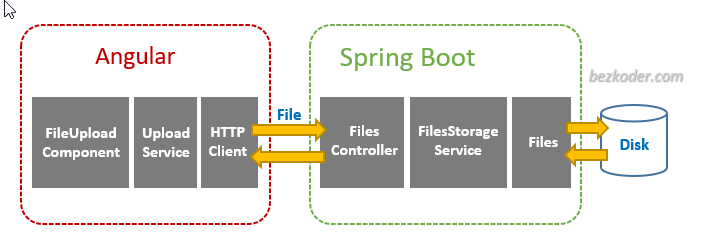
Angular Client:
FileUploadComponent callsUploadServicefunctions for upload/download/display filesUploadServiceusesHttpClientModuleto make HTTP requests
Spring Boot Server:
FilesControllerreceives the HTTP requests from Client, then callsFilesStorageServicefunctions for upload/download/getting filesFilesStorageServiceimplements functions for storing and retrieving file systems using JavaFileslibrary
Technology
Server:
- Java 17 / 11 / 8
- Spring Boot 3 / 2 (with Spring Web MVC)
- Maven
Client:
- Angular 8
- RxJS 6
- Bootstrap 4
Spring Boot Rest APIs for File Upload & Storage
Spring Boot App will provide APIs
| Methods | Urls | Actions |
|---|---|---|
| POST | /upload | upload a File |
| GET | /files | get List of Files (name & url) |
| GET | /files/[filename] | download a File |
This is the project structure:

You can find Step by Step to implement the Spring Boot Server at:
Spring Boot Multipart File upload (to static folder) example
Or: Spring Boot Multipart File upload (to database) example
Setup Angular 8 Project
Let’s open cmd and use Angular CLI to create a new Angular Project as following command:
ng new Angular8UploadFile ? Would you like to add Angular routing? No ? Which stylesheet format would you like to use? CSS We also need to generate some Components and Services:
ng g s services/UploadFile ng g c components/UploadFiles Now you can see that our project directory structure looks like this.
Angular 8 App for upload File

Let me explain it briefly.
– We import necessary library, components in app.module.ts.
– upload-file.service provides methods to save File and get Files from Spring Boot Server.
– upload-files.component contains upload form, progress bar, display of list files.
– app.component is the container that we embed all components.
– index.html for importing the Bootstrap.
Set up App Module
Open app.module.ts and import HttpClientModule:
import { BrowserModule } from '@angular/platform-browser'; import { NgModule } from '@angular/core'; import { HttpClientModule } from '@angular/common/http'; import { AppComponent } from './app.component'; import { UploadFilesComponent } from './components/upload-files/upload-files.component'; @NgModule({ declarations: [ AppComponent, UploadFilesComponent ], imports: [ BrowserModule, HttpClientModule ], providers: [], bootstrap: [AppComponent] }) export class AppModule { } Add Bootstrap to the project
Open index.html and add following line into <head> tag:
<!DOCTYPE html> <html lang="en"> <head> ... <link type="text/css" rel="stylesheet" href="https://stackpath.bootstrapcdn.com/bootstrap/4.4.1/css/bootstrap.min.css" /> </head> ... </html> Create Angular Service for Upload Files
This service will use Angular HTTPClient to send HTTP requests.
There are 2 functions:
upload(file): returnsObservable<HttpEvent<any>>that we’re gonna use for tracking progressgetFiles(): returns a list of Files’ information asObservableobject
services/upload-file.service.ts
import { Injectable } from '@angular/core'; import { HttpClient, HttpRequest, HttpHeaders, HttpEvent } from '@angular/common/http'; import { Observable } from 'rxjs'; @Injectable({ providedIn: 'root' }) export class UploadFileService { private baseUrl = 'http://localhost:8080'; constructor(private http: HttpClient) { } upload(file: File): Observable<HttpEvent<any>> { const formData: FormData = new FormData(); formData.append('file', file); const req = new HttpRequest('POST', `${this.baseUrl}/upload`, formData, { reportProgress: true, responseType: 'json' }); return this.http.request(req); } getFiles(): Observable<any> { return this.http.get(`${this.baseUrl}/files`); } } – FormData is a data structure that can be used to store key-value pairs. We use it to build an object which corresponds to an HTML form with append() method.
– We set reportProgress: true to exposes progress events. Notice that this progress event are expensive (change detection for each event), so you should only use when you want to monitor it.
– We call the request(PostRequest) & get() method of HttpClient to send an HTTP POST & Get request to the Spring Boot File Upload server.
Create Component for Upload Files
Let’s create a File Upload UI with Progress Bar, Card, Button and Message.
First we need to use the following imports:
upload-files.component.ts
import { Component, OnInit } from '@angular/core'; import { UploadFileService } from 'src/app/services/upload-file.service'; import { HttpEventType, HttpResponse } from '@angular/common/http'; import { Observable } from 'rxjs'; Then we define the some variables and inject UploadFileService as follows:
export class UploadFilesComponent implements OnInit { selectedFiles: FileList; currentFile: File; progress = 0; message = ''; fileInfos: Observable<any>; constructor(private uploadService: UploadFileService) { } } Next we define selectFile() method. It helps us to get the selected Files.
selectFile(event) { this.selectedFiles = event.target.files; } Next we define upload() method for upload file:
upload() { this.progress = 0; this.currentFile = this.selectedFiles.item(0); this.uploadService.upload(this.currentFile).subscribe( event => { if (event.type === HttpEventType.UploadProgress) { this.progress = Math.round(100 * event.loaded / event.total); } else if (event instanceof HttpResponse) { this.message = event.body.message; this.fileInfos = this.uploadService.getFiles(); } }, err => { this.progress = 0; this.message = 'Could not upload the file!'; this.currentFile = undefined; }); this.selectedFiles = undefined; } We use selectedFiles for accessing current File as the first Item. Then we call uploadService.upload() method on the currentFile.
The progress will be calculated basing on event.loaded and event.total.
If the transmission is done, the event will be a HttpResponse object. At this time, we call uploadService.getFiles() to get the files’ information and assign the result to fileInfos variable.
We also need to do this work in ngOnInit() method:
ngOnInit() { this.fileInfos = this.uploadService.getFiles(); } Now we create the HTML template of the Upload File UI. Add the following content to upload-files.component.html file:
<div *ngIf="currentFile" class="progress"> <div class="progress-bar progress-bar-info progress-bar-striped" role="progressbar" attr.aria-valuenow="{{ progress }}" aria-valuemin="0" aria-valuemax="100" [ngStyle]="{ width: progress + '%' }" > {{ progress }}% </div> </div> <label class="btn btn-default"> <input type="file" (change)="selectFile($event)" /> </label> <button class="btn btn-success" [disabled]="!selectedFiles" (click)="upload()"> Upload </button> <div class="alert alert-light" role="alert">{{ message }}</div> <div class="card"> <div class="card-header">List of Files</div> <ul class="list-group list-group-flush" *ngFor="let file of fileInfos | async" > <li class="list-group-item"> <a href="{{ file.url }}">{{ file.name }}</a> </li> </ul> </div> Add Upload File Component to App Component
Open app.component.html and embed the UploadFile Component with <app-upload-files> tag.
<div class="container" style="width:600px"> <div style="margin: 20px"> <h3>bezkoder.com</h3> <h4>{{ title }}</h4> </div> <app-upload-files></app-upload-files> </div> app.component.ts
import { Component } from '@angular/core'; @Component({ selector: 'app-root', templateUrl: './app.component.html', styleUrls: ['./app.component.css'] }) export class AppComponent { title = 'Angular Upload Files'; } Run the App
Run Spring Boot Server with command: mvn spring-boot:run.
Refresh the project directory and you will see uploads folder inside it.
Because we configure CORS for origin: http://localhost:8081, so you need to run Angular 8 Client with command:
ng serve --port 8081
Open Browser with url http://localhost:8081/ and check the result.
Further Reading
- https://angular.io/api/common/http/HttpRequest
- Angular 8 JWT Authentication with HttpInterceptor and Router
- Angular 8 CRUD Application example with Web API
Using Template Engine:
Thymeleaf + Spring Boot: File Upload example
Conclusion
Today we’re learned how to build an example for upload Files from Angular 8 to Spring Boot server. We also provide the ability to show list of files, upload progress using Bootstrap, and to download file from the server.
You can find Step by Step to implement the Spring Boot Server at:
Spring Boot Multipart File upload (to static folder) example
Or: Spring Boot Multipart File upload (to database) example
If you want to upload multiple files at once like this:

You can find the instruction here:
Angular 8 Multiple Files upload example
Or multiple images here:
Angular 8 upload Multiple Images example
You will want to know how to run both projects in one place:
How to Integrate Angular with Spring Boot Rest API
Or pagination: Angular 8 + Spring Boot: Pagination example
Source Code
The source code for the Angular 8 Client is uploaded to Github.

A very interesting tuto, thank you
This tutorial helped me so much! Thanks!
Found your Spring Boot with Angular tutorials interesting to read. I can not wait to see more tutorials from you.
Best regards,
Leyma.