


The iPhone's stock keyboard is notorious for making one simple task maddeningly difficult: positioning your cursor exactly where you need it. The standard method involves tapping and holding your finger down to summon a magnifying bubble, but even with that visual aid, getting the cursor into the right spot can be a struggle.
Fortunately, there's a far superior and little-known alternative for moving the cursor while typing in iOS, and the best part is it works even if you're running an older software version, such as iOS 16. Stop fighting your screen. Read on to discover how to unlock and utilize your iPhone's hidden trackpad feature.
For more, be sure to check out how to fix the most annoying features and settings on your iPhone.
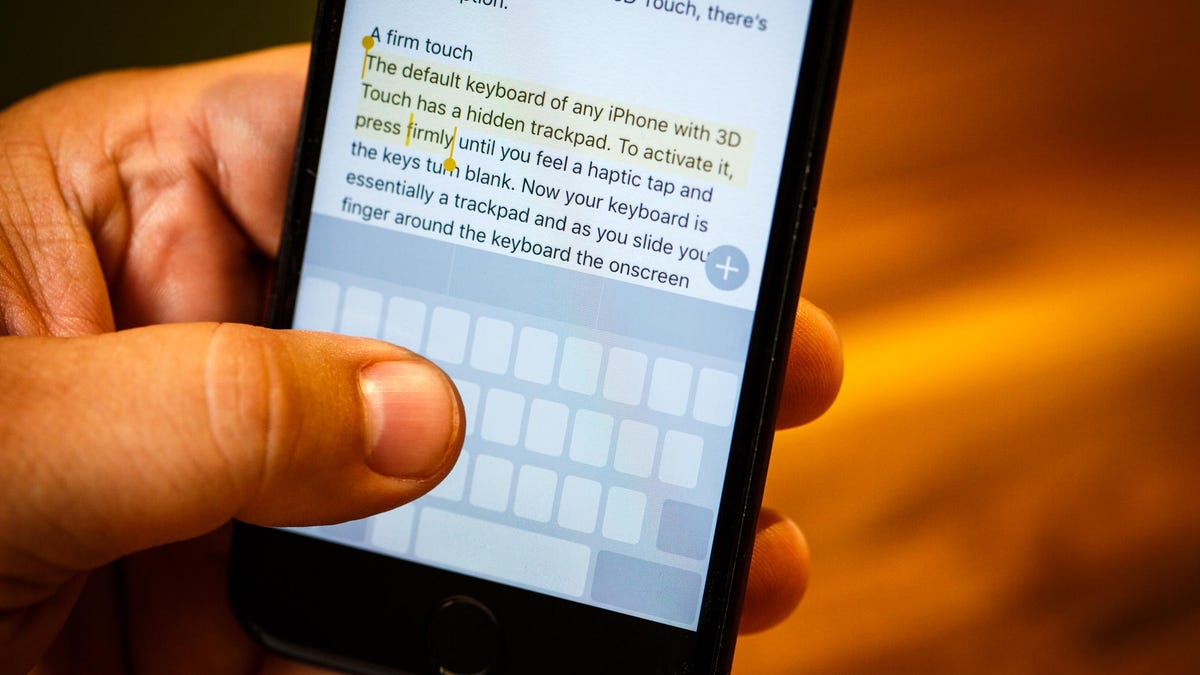
You keyboard looks like this if the hidden trackpad is activated.
How to bring up the secret trackpad on an iPhone or iPad
Here's how to discover the hidden trackpad on an iOS device.
1. Anywhere you've written a block of text, bring up your keyboard and press and hold your finger down on the space key until the keyboard goes blank. You should feel a bit of haptic feedback and see the cursor enlarge for a second, which means you can now use the keyboard as a trackpad.
2. With your finger still pressed down, move it around the entire keyboard to move your cursor, just like you would on your Mac's trackpad.
3. To place the cursor, simply lift your finger off the screen. You can then use any of the other keys, like Delete, to make any edits in the text. If you want to move the cursor once again, press your finger down on the space key to bring up the hidden trackpad.
If you're interested in more tips and tricks for the iPhone, check out how to have a secret conversation in the Notes app. And if you've got an Apple computer, here are 10 Mac hacks you should know about.