
 Lessons: 8Length: 1.1 hours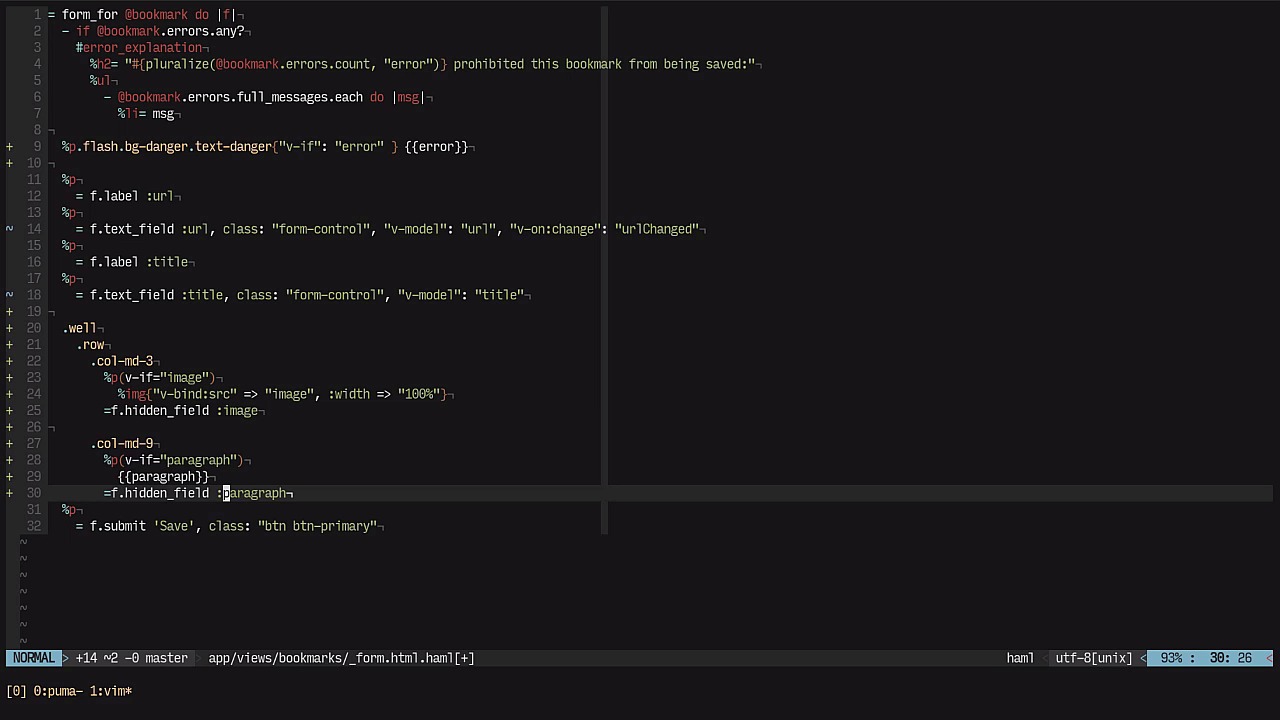
- Overview
- Transcript
2.6 Preview Content With Vue.js: Part 2
In this lesson, we'll finish implementing content fetching and previewing with Vue.js.
2.6 Preview Content With Vue.js: Part 2
This is part two on using Vue.js to fetch content from the page. We were going to start connecting the dots between the form and the Vue.js object. We'll need the form's ID to perform that interaction. So we're gonna go here to New Bookmark and paste that right in here. There you go. So we have the element now, and we also need to ensure that this will work after the entire document is loaded. So let's do that. And also ensure that this also works with the Turbolinks side of things. So instead of that, I'm gonna create a function, loadBookmarkVue like so. Let's shove all of that in here. Okay, and then we also need to have this condition that says, if there is such a thing as a new bookmark, then we'll instantiate it. So if, let's see, let's use the jQuery callback. So if $("#new_bookmark").length. If the element exists, then we'll create that. So we'll basically shove all of this back in here. Okay, so if there is such a thing as new_bookmark, then we'll create a Vue object. Next, let's see. Let's load up this BookmarkVue function and the same goes for the Turbolinks load method. So $(document).on("turbolinks:load"), then we're gonna load the BookmarkVue again. So we are defining the function just once, and we're gonna load it when the document loads or Turbolinks visits this page. Let's reload the page. Now you can see the error message disappears, because we don't have any error in there. Now let's try and load for example tutsplus.com. I'm gonna shift away from this Url box, and we need to hope that something appears. As you can see, loadPage is not defined. Okay, let's take a look at it. So it's not actually loadPage, but this.loadPage. Let's try this once again. Let's shift away from the class. And, as you can see here, something went wrong. So we have the error message working okay. Now we need to take a look at this specific route. Let's take a look at the request and check the errors. So we are failing to connect to that specific server. So from here, we'll need to go to the CrawlController and check things out a little bit. Let me just create a binding.pry statement that will basically allow me to check what's going on. Let's change this to something else. Let's go for example to the forums. So forums.envato.com. The request is hanging now, because it's waiting for us to interact with it. So let's take a look at what data we have here. Let's check out the URL parameter, which is now nil, but let's just skip forward a step and check its value again. There's a particular situation here. As you can see, there's only one forward slash. But if you recall from entering the URL, there is indeed two forward slashes. So there's gotta be something that we can do in order to fix this issue. For one thing, it's not a solution really to just try and make Rails unescape those forward slashes. But the solution that we have is to actually omit http and all that stuff. From now on, we're just gonna skip this. So we're just going to delete this and make it for example a suggestion so that the user knows that he doesn't need to type this. But for now, we'll need to delete this. But there's also one thing that we need to do in the CrawlController. So let's go there, under app > controllers > crawl_controller, and then we'll need to pass in HTTP right here. So http:// and then inject the URL in there. So that is one thing. Now let's go ahead and delete this. And now it's going to perform another request. We can go to the server now, let's just skip this, and check the value of the URL. Okay, very nice. Now, if we skip to the next step, so we try to retrieve the document, we will now get it. So let's just inspect the document variable really quick. And we have loads of information. That means that it was indeed successful in retrieving the value of the document. Let's just leave this for a second. And actually, when we go back to the web page, you will see Envato Forums right in the title. So that's pretty good. Let's see if we try to change this with, for example, let's see, this value right here, but I'm just going to omit this. Okay, let me just quit the pry binding instruction and the title will change accordingly. If we do try to save this now, and hit Save, we will now be redirected successfully. The bookmark will be created, and we have the title, just like so. Now, there's only one catch here, and that is, we will need to make sure that the HTTP protocol precedes rightfully the URL. Because if I hover over this, you will see that localhost:3000 is not really the prefix we want. We want the full URL with the protocol. The same goes for this right here. If I copy this, it will really not be a pleasant experience. Actually, there's a content error in everything because we're not doing things right. Okay, so let's fix the issue right away by going to the VisitController, and here, instead of redirecting to the URL, we'll need to append http:// and then the URL. So that's one thing. We also need to ensure that the template also has that. So let's go to bookmarks > index.html.haml, and in this specific scenario here, in the link_to, we will need to do that the same. So just do that and it should be okay. Actually, I want to copy this and paste it right here, there you go, so that we get a correct representation here. But notice how the previous ones already have those. Well, let's just do that, let's just remove this and update. You should do the same for every other one. Now, here's the deal. We already have the title being fetched for us, but we still have the image in paragraph. Let's create a new bookmark really quick and open the inspector. Let's choose for example my own website. If I type in josemota.net, you will see the title being filled in already. But if we check the details of that specific request, we have an image and a paragraph. Let's ensure that this image is populated on the left side for example and the paragraph on the right. Also, we need to have the appropriate hidden fields in order to have that image field right in there. So let's get right down to it. Let's go to the bookmarks form. So, let's see, app > views > bookmarks > form, and maybe just below the text field with a title, we'll create some sort of a well which is available in the Bootstrap set of components. And in here, we'll have a row which will have two columns, one that's three columns wide, and another one that's maybe nine columns wide, to satisfy the whole 12 units. Here I'm gonna have an image tag which will match the image. So we're gonna have an image tag just like that, and the attribute that we'll need to specify is called v-bind and then :src will match, let's see, the image. So this image attribute will be part of our data object and the view object. Also, let's take the chance and create a paragraph, saying that v-if and then image like so. Let's just fix that to an equal sign. And the image tag will only be printed out if the image attribute is indeed not null. Let's also ensure that the width argument is set to 100%. So that way the image will just fill the whole column width. Next, we're gonna have a paragraph indeed. And this will only show up in case we have a paragraph. So we'll do basically the same thing as we have with the, image but we'll choose the paragraph instead. And then we'll just print out the contents of the paragraph. There's only one last thing that we need to do here, and that is to provide a hidden field. So we'll just create an f.hidden field for the image. Okay, the same goes for the paragraph. So I'll just change this to paragraph and we'll be good to go. We're gonna have a field for the image and the paragraph. These are the most important part of the entire mechanism. After all, without these hidden fields, we won't have information to be persisted. Next, we're gonna have the paragraph and image tags that will only show up in case they indeed exist. Next, the image attribute will bind the source attribute through this key, and it will bind it to the image data. The width is gonna be 100% to fill the entire column. So I think that we're done. Let's see how this works. I'm gonna reload the page, and you will see that the image method is not defined for the bookmark. That's because we still don't have the migration to support it. So let's type in the rails g migration command and call add_image_and_paragraph_to_bookmarks. So what we need is an image attribute and a paragraph attribute. Let's press Enter. The migration will be generated, and then we can consult it. Let's just go to dbmigrate and add an image and paragraph to the bookmarks. There you go, these are the two columns. They can be nil for sure. There's really no issue around that, because there might be a page that really doesn't have an image or maybe there are no paragraphs. It's just a big website with maybe a whole video or something like that. So the columns can indeed be null. Let's run the rake db:migrate command really quick. There you go. And now we should see some changes. Okay. Notice how the well is empty. It's waiting for us to type in something. Let's type in my home page address. Now, notice how as the title is the only thing being populated. We need to ensure that in the JavaScript side of things, we populate the amount of data, at least the new one. Let's go to bookmark-vue.js. And here we're gonna set the data that we're supposed to. So this.image equals data.image, and the same goes for the paragraph. Let's create a really simple substitution. And we're good to go. Let's reload the page really quick, type in josemota.net. And it seems that something is wrong. I mean, the changes should have taken effect, but they are not. Let's see. Of course. This is something that slipped me. We need to specify those attributes in the data hash. So specify those in and we'll be good to go. Let's try this one more time. Let's go to the Url, type in josemota.net. And there you go. There's something that we already have. But notice how this is really something that's quite not working. The paragraph is indeed there, so that's okay, but if we choose to take a look at the image. Let's inspect that. It will point out to a failed URL. I mean, we're actually retrieving the path according to our own application and not really the bookmarks. The easiest solution to fix that is actually quite simple. In the CrawlController, we'll need to specify the origin of the URL. And how do we do that? Well, simply put, we can do something like this. Let's create a host name, which will be the URI, and we'll pick up on the url, and refer to its host. URI is a library that you might have been used to in the past. So what you can do with this host name is to append it to the image, but only if the image doesn't already include something like the protocol. So let's do that. Let's type in image.insert 0 and the hostname unless the image already contains HTTP. So let's type in something like this and try to match it against a regular expression. Let's see, let's type in the s as an option, and this should be good. Also let's ensure that we type in http:// before the hostname, because the hostname doesn't include protocol information. So indeed, we need to include all of this into the image. And this zero basically tells, insert this content right here at the beginning of the string. And we're only going to do this unless the image already has that sort of information. So we'll try and do that again. Let's go to the browser and try and do this again. Let's reload the page. Let's go here to the box and type in the URL again. Let's see, it still seems that we have an error. We don't have the hostname still. I guess I've made some sort of mistake. Let's fix that right away. Yes, we need to figure out a way here to also specify the protocol. So that's one way to put it. Let's reload the page and try this once again. So let's choose this one. And there you go, a lot better. Notice how the image is there. Let's try and switch this to, for example, let's see, tutsplus.com. And look, there's the image as well. So that's pretty good. Let me just try and keep this one. So I'm gonna switch to this one in specific, hit Save, and there you go. There's still one thing that we need to do. Under the BookmarksController, we need to allow those two variables to be inserted. So let's check, url, title, as well as image and paragraph. Now it should be okay. After all, if we check this particular URL, let's see, which one is it? Number ten. Let's perform a quick search on the Rails console and type in Bookmark.all, actually. If you take a look at the last one, you will see that we still don't have any image or paragraph. With this change, we should be good to go. Let me just destroy this one and create it again. Let's see, type in josemota.net. There's the image, and the paragraph. Let's hit Save and go back. Let's just perform a quick query once again, so Bookmark.all. And look at it. At least we have an empty string now. So there's something that we're still missing. That's okay, these things happen. It's quite all right. All of this has to do with the fact that we haven't defined the interaction between the hidden fields and Vue.js. So let's go back to the form. And here in line 25, you don't see any reference to the model. So type in v-model and then associate it with image. And the same goes for line 30 in which you need to change this to paragraph. That way, when we define the new data, so when retrieving the content from the Ajax request and setting the data appropriately, the hidden fields will also have that. Let's also take the chance to change the bookmarks table. Let's see, let's create another header here, which will be the image, and then create that cell, which will match the bookmarks image, so bookmark.image. And then we'll create a small representation here of the paragraph. Let's create a text-muted class which will only include the bookmarks paragraph. And that's it. So we're gonna have the input field, this is actually out of place. Let me just put that maybe after the title. We'll put this in a strong tag in the paragraph just below it. Also, let's enclose this in a paragraph of its own. And this looks a lot better. Let's see how this turns out. So we have the bookmark's title along with the paragraph. The image will be in its own place. Actually, let's make this an image tag with the bookmarks image, and then, let's see, a width of a total of maybe 50 pixels, I think that's okay, or even 100. I think this is reasonable. So let's take the chance and reload this page already. And it seems that nil is actually not a valid as its source. So we're gonna do things a little different. We just need to add a condition. So we'll just create the image tag in case there's an image. I think this should be okay. Let's reload the page, and there you go, a lot better. Let's destroy this link really quick and create it again. So, new bookmark, let's see, josemota.net, hit Save, and this time, there's our image and there's our paragraph. So congratulations on implementing content scraping with Vue.js and HTTParty. As you can tell, this is still a very immature idea, but it has a lot of potential nonetheless. We've managed to secure an image and a paragraph in specific, but there's a lot more that could be done. Maybe we could interpret, for example, YouTube videos or any other form of media, and that would bring a really great amount of value. For now, we have this, and it looks definitely okay. I like the way things turned out a lot.


