Use visual intelligence on iPhone
Use visual intelligence to quickly learn more about what’s in front of you, whether in your physical surroundings or on your iPhone screen.
To learn more about your physical surroundings using your iPhone camera on models that have the Camera Control, just click and hold it to do things like look up details about a restaurant or business; have text translated, summarized, or read aloud; identify plants and animals; search visually for objects around you; ask questions; and more. On iPhone 16e, iPhone 15 Pro, and iPhone 15 Pro Max, you can access visual intelligence by customizing the Action button or Lock Screen, or opening Control Center. See Alternate options to using the Camera Control.
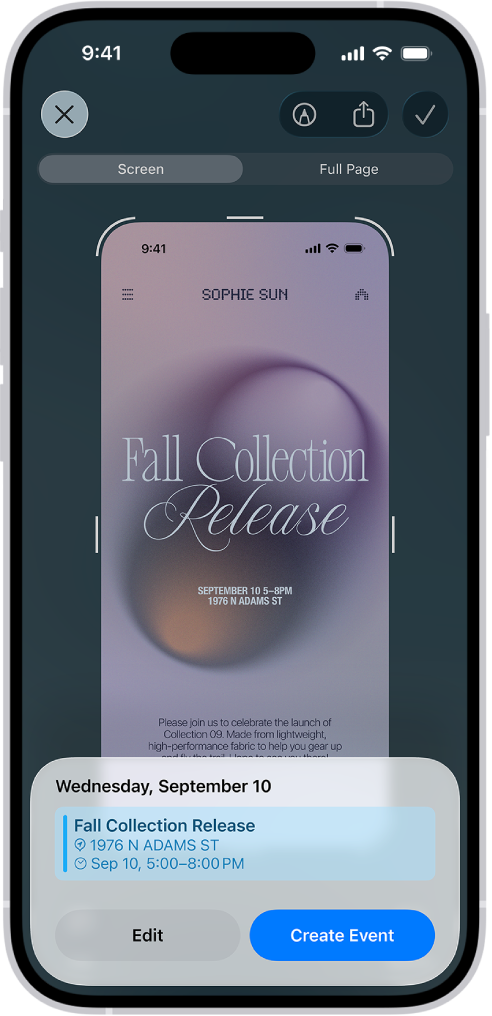
To learn more about the content on your iPhone screen across your apps, simply press the same buttons you use to take a screenshot. You can search visually, ask questions, and take action, like turning a flyer or invite into a calendar event.
Note: Apple Intelligence* is not available on all iPhone models or in all languages or regions.** To access the most recent available features, make sure you’re using the latest version of iOS and have Apple Intelligence turned on.
Get information about a place
You can use visual intelligence to get details about a business in front of you, such as hours of operation, available services, and contact information. Depending on the business, you can also view reviews and ratings, make a reservation, or place an order for delivery.
Click and hold the Camera Control (on supported models), or use an alternate option.
Point your iPhone camera at the business in front of you.
Click the Camera Control again or tap the name of the business at the top of the screen, then depending on the business, do any of the following:
View the hours of operation: Tap Schedule.
Place an order for delivery: Tap Order.
View the menu or services offered: Tap Menu.
Make a reservation: Tap Reserve.
Call the business, view its website, and more: Tap
 .
.
Tap
 or swipe up from the bottom of the screen to close visual intelligence.
Get information about animals and plants
You can use visual intelligence to identify animals and plants.
Click and hold the Camera Control (on supported models), or use an alternate option.
Point your iPhone camera at an animal or plant in front of you.
Tap the result at the top of the screen.
Tap
to close the results, then swipe up from the bottom of the screen to close visual intelligence.
Learn more about the content on your iPhone screen
You can use visual intelligence to learn more about what you’re viewing on your iPhone. You can search across apps, go straight to relevant websites, add an event to your calendar, and more.
To access visual intelligence for onscreen content, do the following:
Quickly press and release the side button and the volume up button at the same time to take a screenshot.
Use the visual intelligence tools at the bottom of the screen to do any of the following:
Tap
 to search the web for similar items.
Swipe your finger on a specific item to highlight it and search for that particular item.
Tap
 to ask ChatGPT a question about what’s onscreen.
Tap Add to Calendar to create a calendar event.
Tap the website to go to the relevant website.
Tap Summarize for a short summary of the text.
Tap Read Aloud to play audio of the text.
Tap the plant or animal identified to learn more about it.
Tap
 to delete the screenshot or tap
  to save it.
Interact with text
You can use visual intelligence to interact with text around you in a variety of ways. For example, you can have visual intelligence summarize and translate text or read it aloud. Visual intelligence can also identify contact information in text such as phone numbers and email addresses, websites, and take action depending on the type of text.
Click and hold the Camera Control (on supported models), or use an alternate option.
Point your iPhone camera at text in front of you.
Click the Camera Control again or tap the circle at the bottom of the screen to analyze the text.
Depending on the text, do any of the following:
Read a short summary of the text: Tap Summarize at the bottom of the screen.
Translate text: Tap Translate at the bottom of the screen.
Hear the text read aloud: Tap Read Aloud at the bottom of the screen.
Call a phone number, start an email, create a calendar event, or go to a website: Tap the phone number, email address, date, or website at the bottom of the screen. Tap
to see all of the available options.
Tap
to close the text results, then swipe up from the bottom of the screen to close visual intelligence.
Create a calendar event from details on a poster or flyer
You can use visual intelligence to create an event in the Calendar app when you see an event on a poster or flyer.
Click and hold the Camera Control (on supported models), or use an alternate option.
Point your iPhone camera at a poster or flyer that contains a date in the future, then tap Add to Calendar.
Tap Create Event.
Tap Edit to modify the event details, then tap
 .
.The event is automatically added to your Calendar app.
Tap
, then swipe up from the bottom of the screen to close visual intelligence.
Search for visually similar images
You can use visual intelligence to search for items similar to those around you.
Click and hold the Camera Control (on supported models), or use an alternate option.
Point your iPhone camera at an object in front of you.
Tap
to search for similar images.Tap
to close the search results, then swipe up from the bottom of the screen to close visual intelligence.
Note: Subject to your search provider’s terms of use and data privacy policies.
Alternate options to using the Camera Control
On iPhone 16e, iPhone 15 Pro, and iPhone 15 Pro Max, you can choose any of the following options as an alternative to using the Camera Control for visual intelligence:
Action button: Customize the Action button on the left side of your iPhone to use visual intelligence. See Customize the Action button.
Lock Screen: Add a visual intelligence control to the bottom of your Lock Screen to use visual intelligence. See Edit your Lock Screen or create a new one.
Control Center: Swipe down from the top-right corner of the screen to open Control Center, then tap
 to use visual intelligence.
If you turn on the ChatGPT extension, you can use visual intelligence to ask ChatGPT for information about things around you. To turn on the extension and learn about availability, see Use ChatGPT with Apple Intelligence.