
Cost Optimization Billing Configuration
Last updated - 25 November, 2025
You can configure LogicMonitor to import cloud provider billing data using the Billing configuration tool to streamline the process of exporting cloud billing data from each provider into LogicMonitor.
Requirements for Configuring Billing Data for Cost Optimization
To configure AWS billing data for Cost Optimization Billing, you must create a new Cost and Usage Report (CUR) within the AWS console or use an existing report. You need the following information from the export configuration:
- Name of your Amazon S3 bucket
To obtain the name of your S3 bucket, you must set up an Amazon S3 bucket for your Cost and Usage Report.
For more information, see Setting up an Amazon S3 bucket for cost and usage reports from AWS. - Report path prefix of your cost and usage report
To obtain the report path prefix, you must create a Cost and Usage Report that is enabled to integrate with Amazon Redshift.
For more information, see Creating Cost and Usage Reports from AWS.
Recommendations:
- Use one of the following Cost and Usage Report versions:
- FOCUS 1.0 with AWS columns
- CUR 2.0
- CUR 1.0
- Do not use a combination or more than one Cost and Usage Report as this display different names for the same account in LogicMonitor.
- When configuring the Cost and Usage Report, consider the following:
- LogicMonitor does not currently collect Resource IDs.
- To optimize your report and reduce your data egress cost from AWS, enable a daily aggregate for time granularity and a parquet format for the report data integration.
- Activate Cost Allocation Tags in the AWS console and mark the resources and property normalization aliases you want included in Recommendations. For more information, see Activating user-defined cost allocation tags from AWS.
To configure Azure billing data for Cost Optimization Billing, you must create a new cost export within the Azure console. For more information, see Create and manage exported data from Azure. You need the following information from your Azure data export:
- (Optional) Export Name
Leaving Export Name blank includes all exports in the container directory. - Storage Account Name
- Storage Account Container Name
- Storage Account Container Directory
Note: Amortized Azure reports are not supported at this time. Only use one export configuration when importing data. Using both at once may lead to errors or duplicated report data.
You must also register LogicMonitor as an app with Entra or Azure AD with the following roles:
- Add the “Reader” role to the app registration at the subscription scope. For more information, see Assign a role to the application from Azure.
- Add the “Storage Blob Data Reader” role to the app registration at the storage account resource scope. For more information, see Assign Azure roles using the Azure portal from Azure.
For more information on registering an app with Entra or Azure AD, see Register an application with Microsoft Entra ID and create a service principal from Azure.
Recommendation: To avoid issues while importing data to LogicMonitor, do not use unsupported configurations. LogicMonitor supports the following export configurations:
- Cost and usage details (actual) version 2024-08-01 or earlier
- Cost and usage details (FOCUS) version 1.0 or earlier
To configure GCP billing data for Cost Optimization Billing, you must export cloud billing data to BigQuery in GCP. For more information, see Export Cloud Billing Data to BigQuery from GCP.
Recommendation: Use a Detailed usage cost data export, rather than a standard export, during this process.
You also need the Project ID from your GCP account. For more information, see Creating and managing projects from GCP.
You must create a Service Account within the GCP console with at least the following roles granted:
- BigQuery Data Viewer
- BigQuery Job User
- BigQuery Read Session User
For more information, see Service Accounts Overview and Roles for service account authentication from GCP.
Create a service account key for the service account. For more information, see Create and delete service account keys from GCP.
Configuring AWS Billing Data for Cost Optimization
- In LogicMonitor, navigate to Cost Optimization > Billing and select
 Manage Billing Configurations.
 - In Manage Billing Configurations, select
 Create Billing Configuration.
 - In the Provider field, select “AWS.”
- In the Display Name field, enter a name for your AWS configuration.
- (Optional) In the Description field, enter a description for the resource.

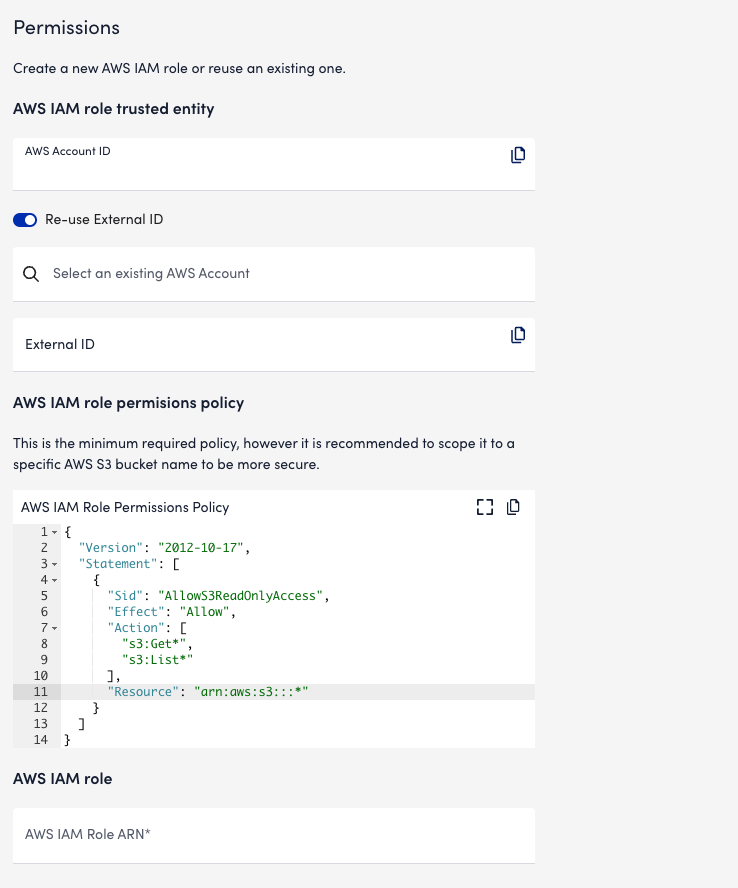
- Select the Permissions tab. The AWS Account ID field populates automatically with the ID of an AWS account. LogicMonitor uses this account to collect billing data from your AWS account.
- (Optional) To use the same External ID from an AWS account already connected to LogicMonitor, do the following:
- Toggle the Re-use External ID switch. This allows you to use the same External ID from an AWS account already connected to LogicMonitor.
Leaving this option disabled automatically generates a new External ID for your Billing configuration. - In the Select an existing AWS Account field, enter or search for an AWS account from which to collect billing data.
If “Re-use External ID” is disabled, this field is hidden.
- Toggle the Re-use External ID switch. This allows you to use the same External ID from an AWS account already connected to LogicMonitor.
- Locate AWS IAM Role Permissions Policy and confirm the field is populated with text.
This field is pre-filled with a basic set of permissions to enable LogicMonitor access to your Cost and Usage Report.
Recommendation:
- If the External ID does not already have an IAM Policy with these permissions applied, you can copy the JSON script provided and apply it to your role in the AWS console.
- This field does not automatically apply a policy to your IAM role. For more information, see Policies and Permissions from AWS.
- In the AWS IAM Role ARN field, enter the Amazon Resource Number (ARN) for LogicMonitor’s IAM role. For more information, see IAM Identifiers from AWS.
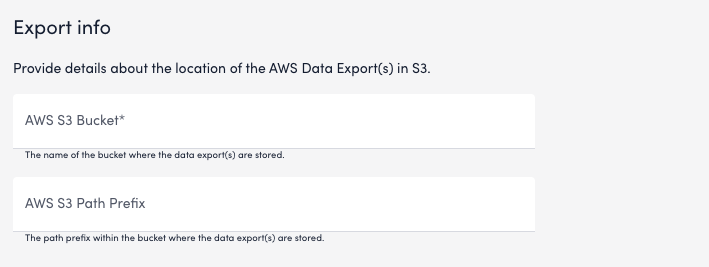
- In the Export Info section, enter the AWS S3 Bucket Name and AWS S3 Path Prefix into the provided fields.
- Select Open settings to configure property normalization for use with Cost Optimization Billing filters. For more information, see Portal Settings.
- Select Verify and add configuration.
Configuring Azure Billing Data for Cost Optimization
- In LogicMonitor, navigate to Cost Optimization > Billing and select Manage Billing Configurations.
- In Manage Billing Configurations, select Create Billing Configuration.
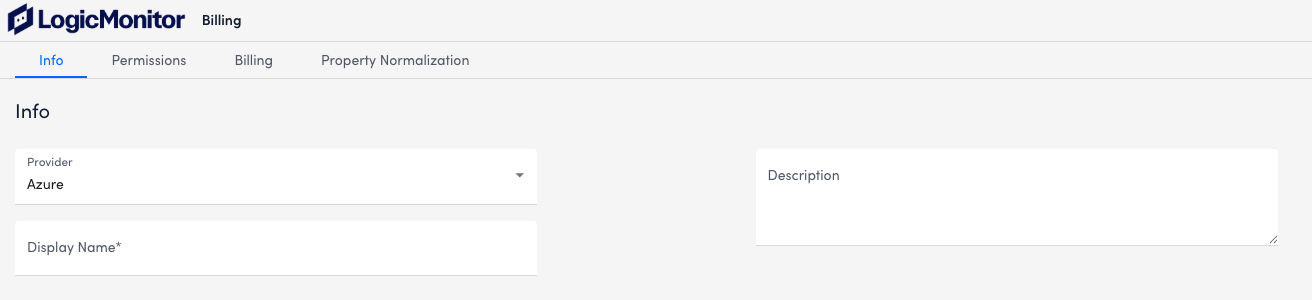
- In the Provider field, select “Azure.”
- In the Display Name field, enter a name for your Azure configuration.
- (Optional) In the Description field, enter a description for the resource.
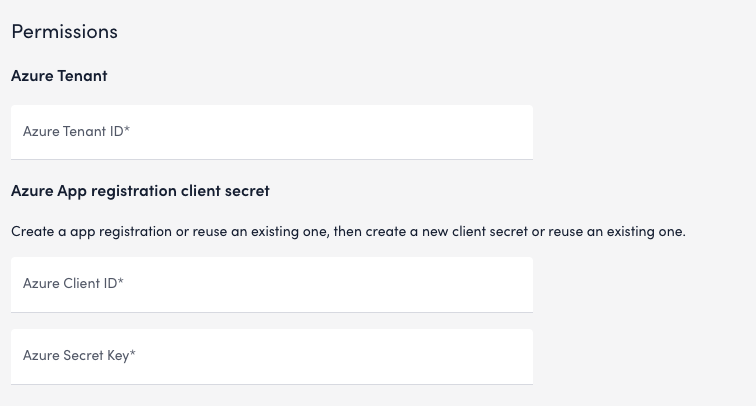
- In Permissions, enter the Azure Tenant ID.
- In the Azure App registration client secret section, enter the Azure Client ID and Azure Secret Key into the provided fields.
- Select the Export Info tab, and enter the Azure Cost Management Export Name for your Azure data export.
- Enter the Azure Storage Account Name, Azure Storage Account Container Name, and Azure Storage Account Container Directory into the provided fields.

- Select Open settings to configure property normalization for use with Cost Optimization Billing filters. For more information, see Portal Settings.
- Select Verify and add configuration.
Configuring GCP Billing Data for Cost Optimization
- In LogicMonitor, navigate to Cost Optimization > Billing and select Manage Billing Configurations.
- In Manage Billing Configurations, select Create Billing Configuration.
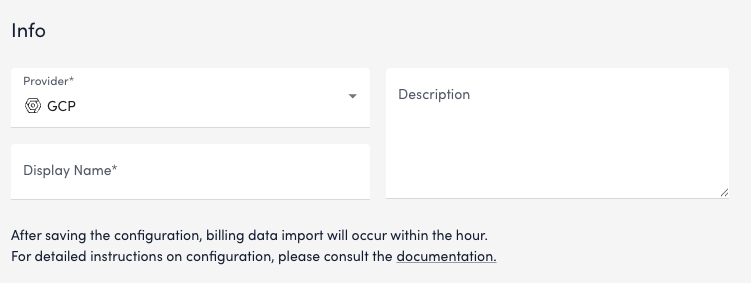
- Select “GCP” from the Provider dropdown menu.
- In the Display Name field, enter a name for the GCP configuration.
- (Optional) In the Description field, enter a description for the resource.
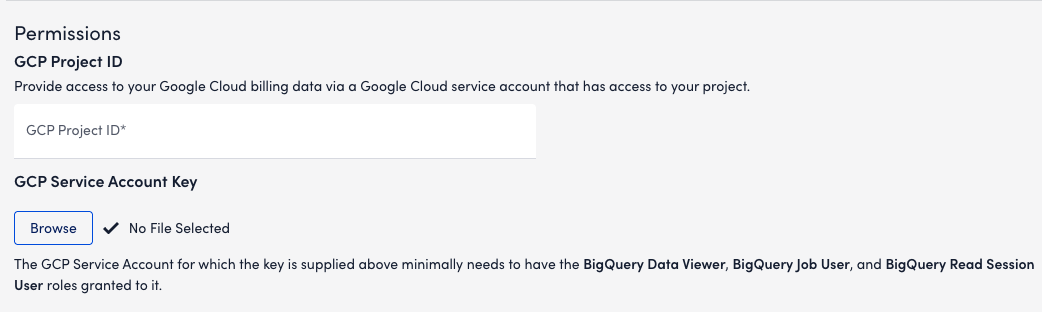
- Select the Permissions tab, and enter your GCP Project ID.
LogicMonitor uses this account to collect billing data from your GCP account. - In the GCP Service Account Key section, select Browse and upload the GCP Service Account Key you created.
- In the Export Info section, enter the GCP BigQuery Table path.
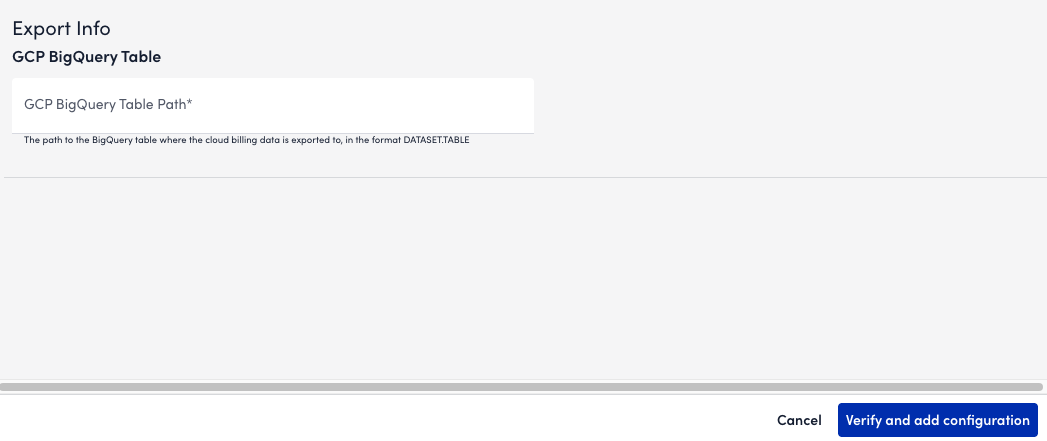
- Select Verify and add configuration.
